See what’s happening.
Your terminal, live on your phone.
Your coding agent. On your phone.
Check progress. Reply to prompts.
Your agent stays on your computer. You don’t have to.
Free and open source. No account needed to try it.
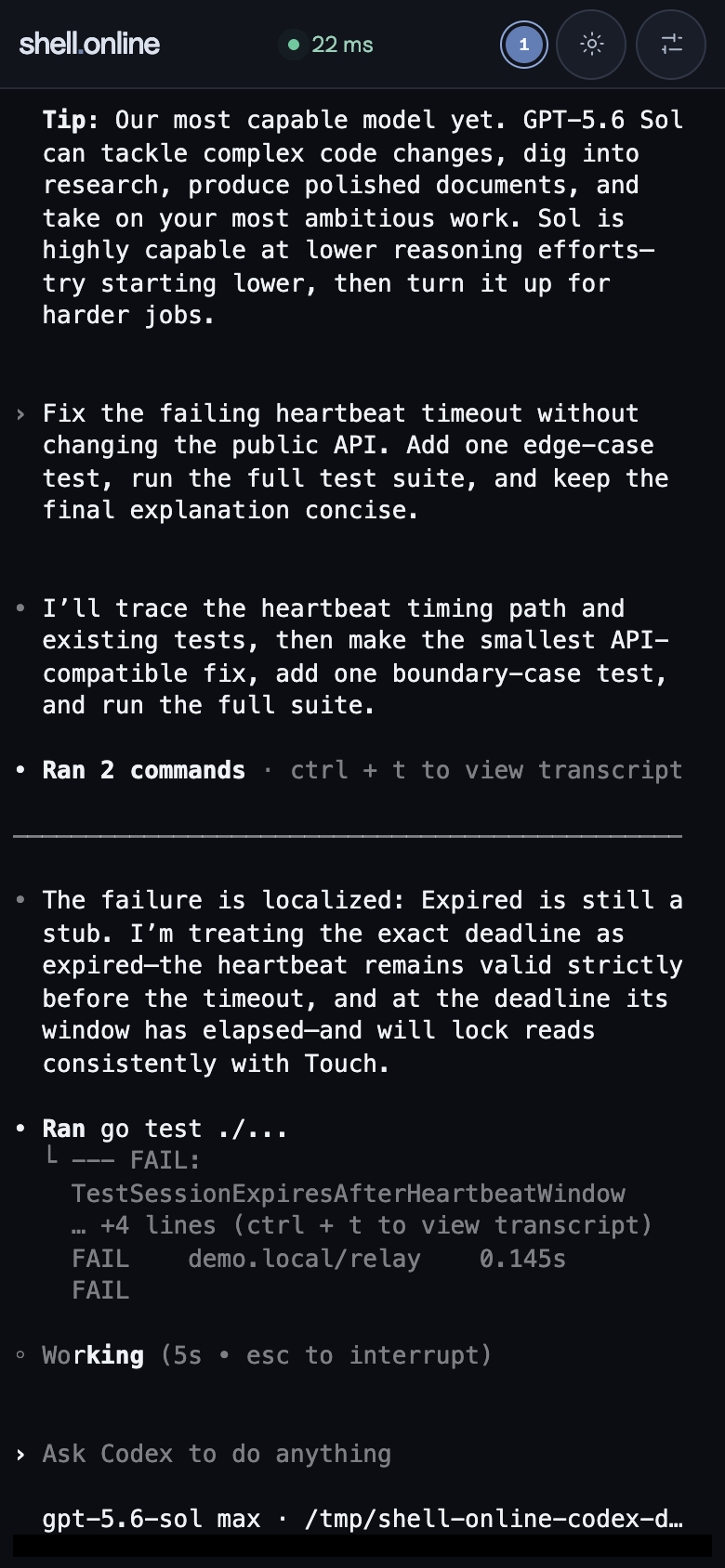
Less waiting around
Your terminal, live on your phone.
A quick reply. Back to your day.
Invite a teammate to watch or type—with the link and password.
Bring the tools you already use
 Claude Code
 Codex
Codex OpenCode
 Muse Code
 Gemini CLI
 Cursor CLI
 Copilot CLI
 Cline CLI
 Amp
Amp Aider
Aider Goose
Goose Kimi CLI
 Qwen Code
 Pi
Pi Junie CLI
 Kilo CLI
 Droid
Droid Hermes
 OpenClawAny terminal tool
Share their terminal sessions, not their desktop apps. Your agent and model stay yours.
Computer → link → phone
Install once on your computer. Open from any browser.
You’re on your phone. Run these steps on the computer where your agent lives. Email yourself the setup link
Choose your computer. Then open its terminal and run:
curl -fsSL https://shell.online/install | shPrefer a package manager? Install with Homebrew.
Have Git and Go 1.26.8 installed? Build the current release yourself. No Node.js or web build needed.
git clone --depth 1 --branch v0.23.0 https://github.com/TeoSlayer/shell.online.git
cd shell.online
go build -buildvcs=false -trimpath -ldflags="-X main.version=0.23.0" -o shell ./cmd/shell
./shell --versionUse ./shell codex from this folder, or put the binary on your PATH. Full source-build guide.
shellChoose an agent you already have installed:
We add shell in front. Nothing runs in this page.
shell codexThis starts a new shared session. It does not attach to a process that is already running.
Your terminal prints a link, password and QR code. Scan the QR code, or open the link and enter the password.
Keep your computer awake and connected to the internet.
When one session becomes several
Create a free account to bring your linked computers and sessions into one web app. Share access with teammates when you choose.
Create a free accountOptional. You can try your first session without signing up.
01 Link your computer with shell auth.
02 Open your sessions from the web app.
03 Invite teammates when you want help.
The details, when you want them
shell --read-only <command> for view-only access.shell with builds, tests, SSH and other terminal tools. See command examples.No account is needed for a basic shared terminal. The CLI is free and open source. An account adds the web app and team features. Your agent’s own model or subscription costs still apply.
Your computer must stay awake and online. If it sleeps or loses its connection, you cannot control it from your phone until it reconnects.
Start the process through shell to share it. If your agent supports resuming a saved conversation, start its resume command through shell. shell.online does not attach to any arbitrary running process.
Yes, with a separate scoped grant. MCP access authorizes the server to decrypt terminal content for the agent. An ordinary browser link does not grant MCP access. Read the MCP guide.
No. It shares the terminal process you started, not your whole desktop. You can watch its output and type into it. Other desktop apps are not shared.
Next time your agent is busy
Free. No account needed to try it.